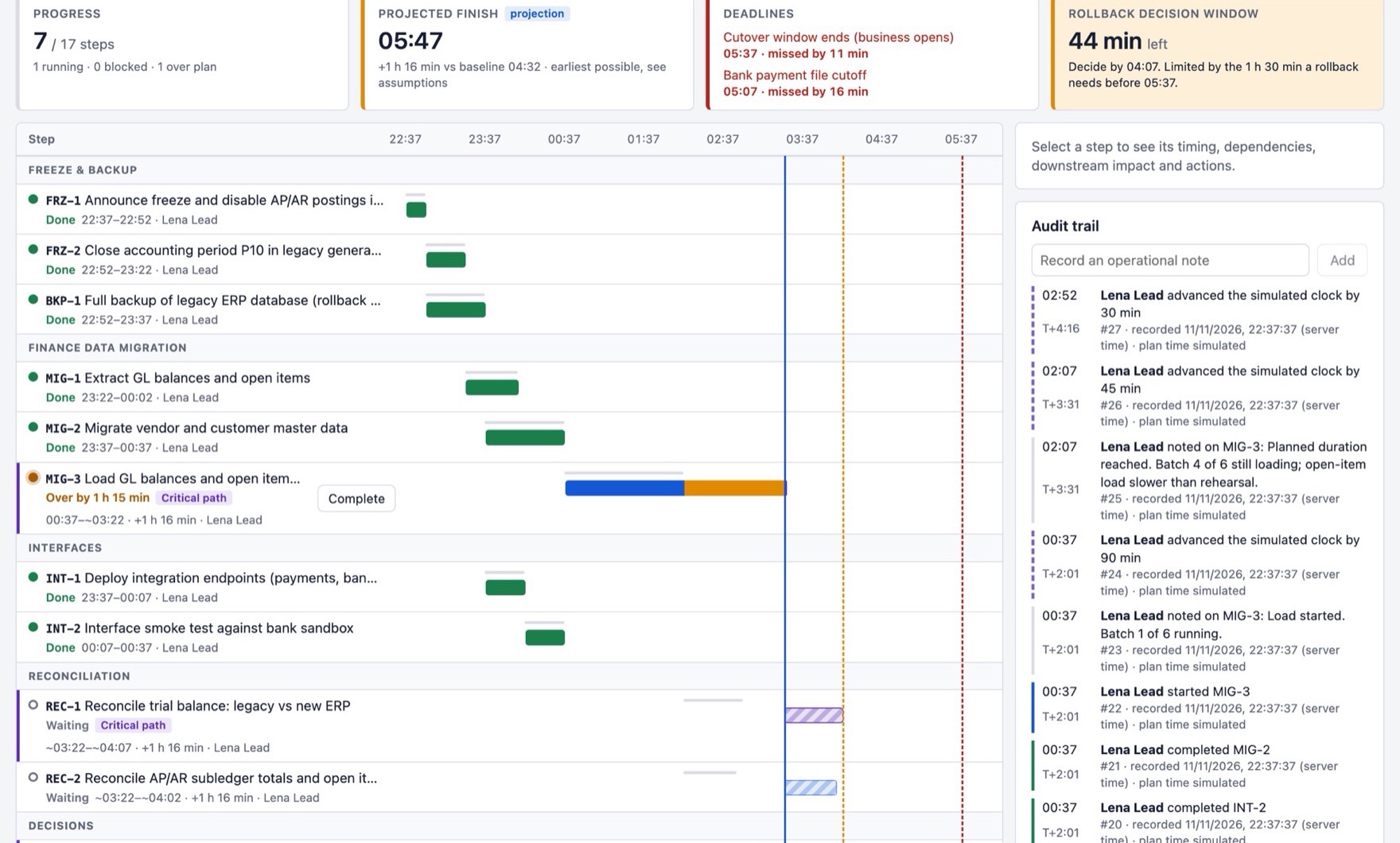
Built for the night when everything has a deadline
A finance or ERP cutover has dozens of timed steps across teams, a bank file cutoff, a business-open deadline, and a point after which you cannot go back. A spreadsheet and a bridge call cannot tell you how late you are. T-Minus can.
Live runbook
Every step is a Jira issue. Operators start, complete and block steps; every other screen updates within seconds, and the Jira issue moves with it.
Slip you can trust
After each change the schedule is recalculated: critical path, projected finish, and the margin to every deadline. Recorded facts, projections and operator estimates are labelled separately.
Rollback decision clock
T-Minus shows how long you still have to decide on a rollback, and why: the point of no return, or the time a rollback needs before the window closes.
Go/no-go checkpoints
Named approvers record go, conditional go or no-go with their evidence. Steps behind a checkpoint stay locked until the decision is in.
Audit trail
Every action is recorded once, in order, with the server time and the person who did it. Two people cannot start the same step.
Situation briefings in Rovo
Ask the T-Minus agent for the current situation or an executive update. It answers from the recorded plan state and says what is a projection.
How it works
- Plan in Jira. One issue per step. Links of type “Blocks” become dependencies, the original estimate becomes the planned duration, the assignee becomes the owner.
- Import the project. Open T-Minus in the Jira project, set the cutover window and how long a rollback takes, and import.
- Run it. Start the cutover. Operators work the steps; the lead watches the projected finish, the deadlines and the rollback clock.
- Decide. At each checkpoint the approver records the decision. Passing the point of no return needs an explicit confirmation.
What it will not do
- It never starts a rollback.A no-go stops execution in the app. What happens in your systems stays a human action.
- It does not guess.The schedule is plain arithmetic on recorded times and planned durations. When a step is running late, the app says the projection is the earliest possible finish.
- It does not send your data anywhere.Plans and the audit trail are stored in Forge storage on your Atlassian site. There is no external server.
- It does not store names or emails.Only Atlassian account ids are kept. Names are read from Jira when a screen is shown.
Install
The link opens Atlassian's install page, where you choose your site and review the permissions: read and update Jira issues, read user profiles (names are shown, not stored), and app storage.
You need to be an admin of a Jira Cloud site. The briefing agent also needs Rovo. After installing, open any Jira project and choose T-Minus from the project tabs; “Create demo plan” loads a synthetic finance cutover you can run in a few minutes.
T-Minus is a new, personal project. It has been tested on a demo site, not on a real cutover. Rehearse with it before you rely on it, and keep your existing runbook to hand.